
Wedding RSVP Dashboard: Every Guest Response in One Place
The VibeInvite team · Updated
A wedding RSVP dashboard is your private page where every reply to your invitation appears the moment a guest sends it: who is coming, with how many people, which menu each person chose and the note they left you. With VibeInvite it comes with every invitation. You sign in with your email and password, create personal links for your guests and download a ready guest list in Excel for the venue.
What a wedding RSVP dashboard is
When guests RSVP through a digital invitation, their answers need a home. The dashboard is that home: one secure page at your invitation's address (for example emma-and-james.vibeinvite.me/dashboard) that only you can open.
Instead of writing calls and messages into a notebook or spreadsheet, everything collects itself. The guest fills in the form once, and you see the finished answer with every detail. Watch the one-minute tour below.
Everything at a glance
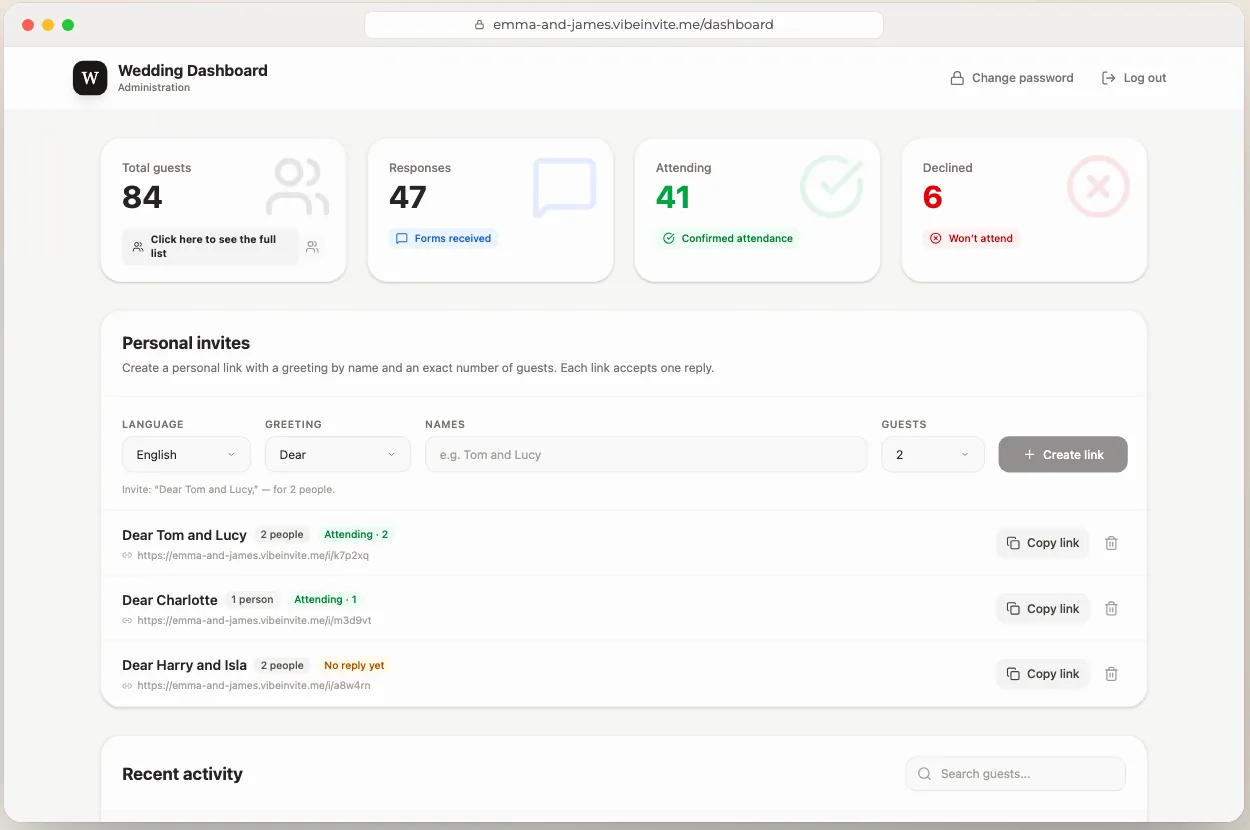
At the top sit the four numbers you check most: total guests coming, responses received, how many confirmed and how many declined. The total includes plus-ones and children, so it is exactly the number your venue will ask for.
One click on the total opens the full list of confirmed guests, grouped by family and personal invite.
Also read: Wedding Guest List Management: How to Stay in Control
Responses arrive live
The moment someone RSVPs, the answer appears in your dashboard without refreshing the page. The numbers at the top update on their own, and the new reply goes to the top of Recent activity.
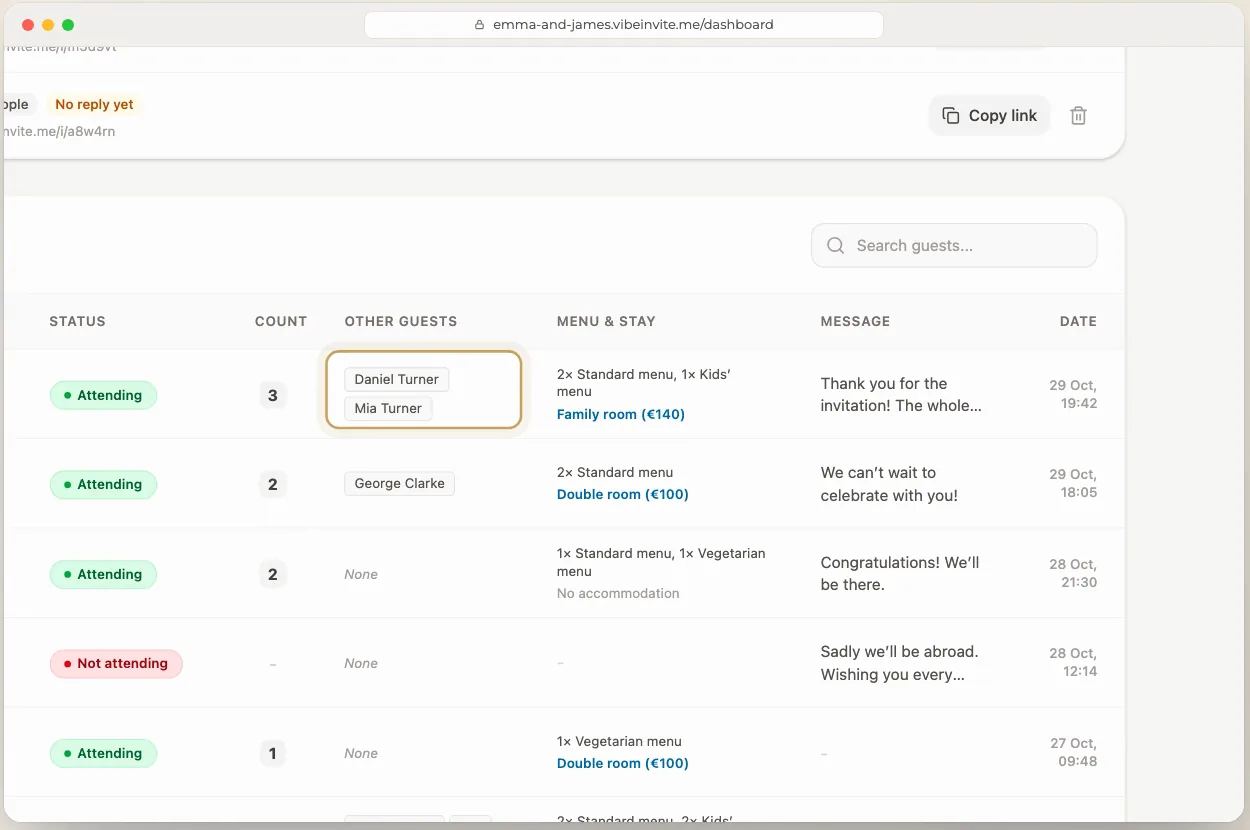
Search finds any guest by name, even when they are only a plus-one in someone else's reply. Handy when an aunt asks two days before the wedding whether she's on the list.
Turn this text into a live digital invitation
With RSVP, map and music — send one link to all your guests.
The details for every guest
The dashboard shows everything your invitation's form asks. Most often that is the names of plus-ones, a menu for each guest (standard, vegetarian, kids), drinks, whether they need transport or a room, and a personal note to you.
The menu is chosen per person, not per family. If four people come together and one is vegetarian, you can see it at a glance without asking again.
A personal invite for every guest
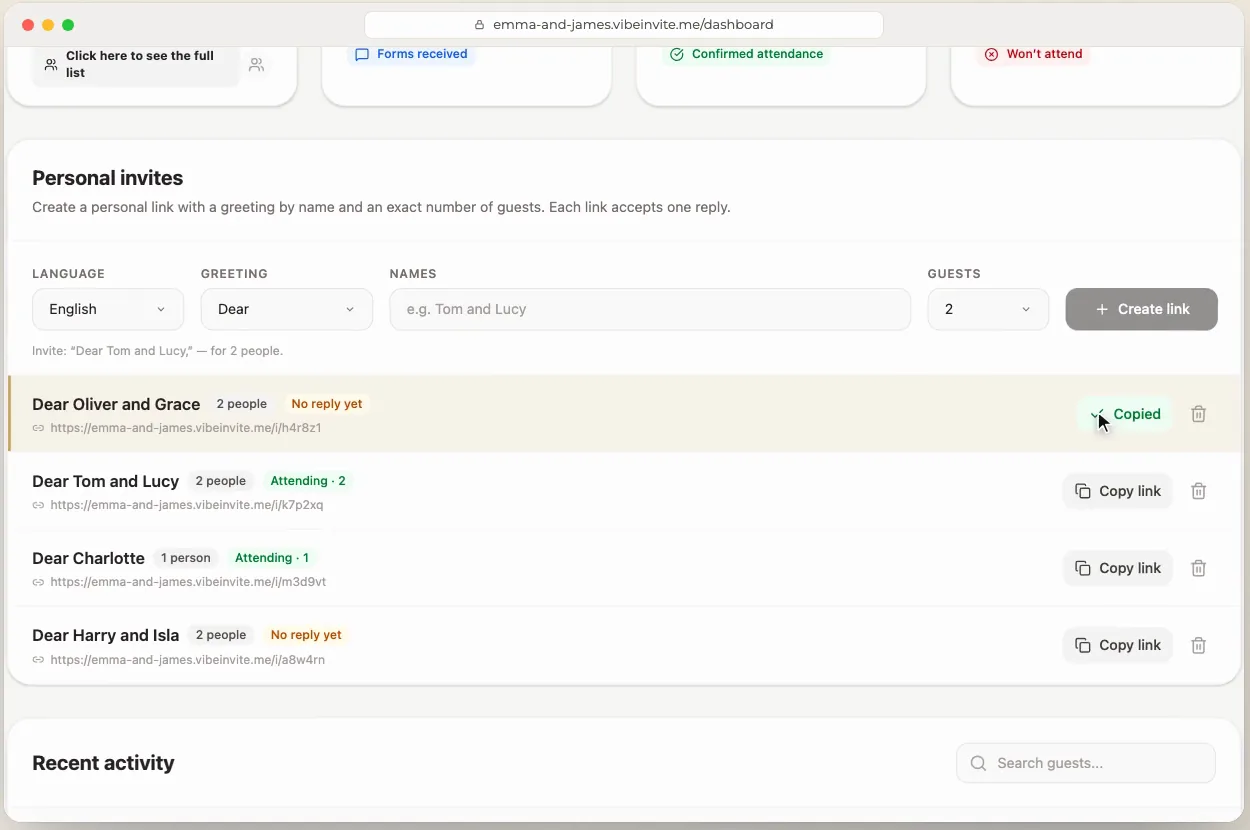
From the dashboard you create a personal link for each household, with a greeting by name ("Dear Tom and Lucy") and the exact number of guests. The link copies with one click, ready to send on WhatsApp, Messenger or Viber.
Each personal link accepts one reply, so nobody can add more people than you invited. Next to every invite you can see whether they have answered, so you know exactly whom to remind. More on sending in how to send a digital wedding invitation.
A ready list for the venue and seating plan
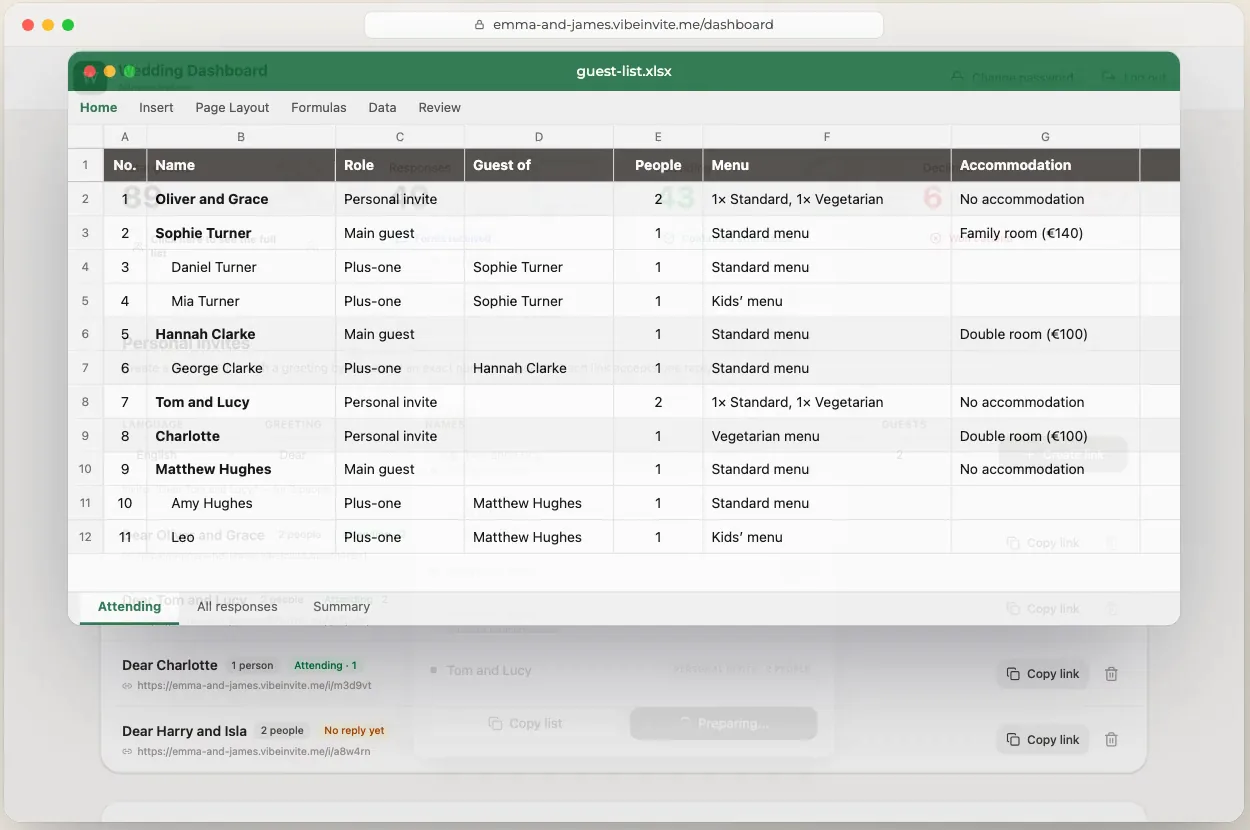
The list of confirmed guests copies with one click or downloads as an Excel file. The file has separate sheets for attending guests (one person per row, with their menu), for all responses, and a summary with the count of each menu.
The summary is exactly what your venue asks for a week before the wedding, and the attending sheet is a ready base for your seating plan. How to keep the list itself under control is in wedding guest list management.
Security and guest privacy
The dashboard is protected by email and password. On your first sign-in you replace the temporary password with your own, and only you and the people you share the login with, such as your partner or wedding planner, can see the responses.
Every couple has a separate database, so your guests' answers never mix with anyone else's. Guests enter their details themselves and only once, with no account and no app.
How to use the dashboard until the wedding
When to send invitations and what RSVP deadline to set is covered in the complete wedding RSVP guide.
- On the day you send the invitations: create the personal links and send them household by household.
- In the first weeks: watch who has replied, and don't chase anyone until at least a week has passed.
- Two weeks before the deadline: remind only the invites marked No reply yet.
- When someone declines: the freed seats show up at once, so you can invite guests from your B list.
- After the deadline: download the Excel file and send the summary to your venue.
Frequently asked questions
Do guests need to register or download an app?
No. Guests open the invitation from the link and reply in the form at the bottom. Their answer appears in your dashboard right away.
Can my partner see the responses too?
Yes. Share the login (email and password) with your partner or wedding planner, and you all see the same responses in real time.
Can I download the guest list to Excel?
Yes. The dashboard exports an Excel file with every confirmed guest, each person's menu, all responses and a summary by menu, ready for your venue.
What if a guest wants to change their RSVP?
A personal link accepts one reply. If someone tells you they need to change something, delete their response in the dashboard and they can fill in the invitation again.
Does the dashboard cost extra?
No. The guest dashboard, the RSVP form and personal invites are included in every VibeInvite plan, with no limit on the number of guests.
Ready for your digital invitation?
Browse the designs — every invitation includes an RSVP dashboard and is crafted within 5 working days.
Browse designs